> For the complete documentation index, see [llms.txt](https://guide.cryosparc.com/llms.txt). Markdown versions of documentation pages are available by appending `.md` to page URLs; this page is available as [Markdown](https://guide.cryosparc.com/application-guide/admin-panel.md).
# Admin Panel
The admin panel can be accessed by clicking the “key” icon located on the navigation bar on the left-hand side of the app window.
## Instance Settings
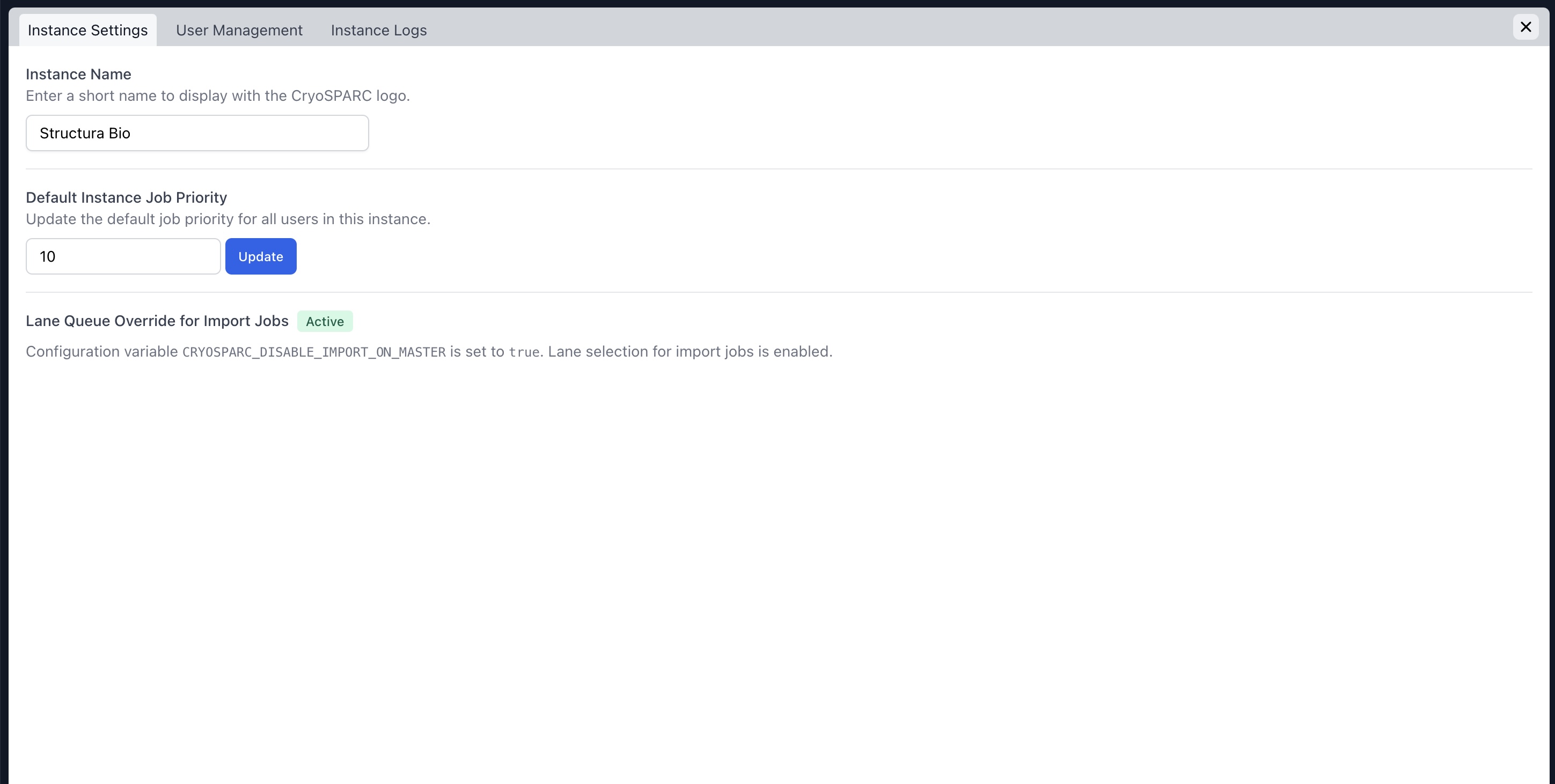
The Instance Settings tab allows you to set general instance-wide defaults. Two configurable fields are available: the instance name, and the default instance job priority.
* **Instance Name:** The instance name is simply a name used to visually differentiate your instances visually.
* **Default Instance Job Priority:** This is the default priority assigned to jobs launched within the instance. Job priority differentiates the importance between different jobs launched in an instance and allows more important jobs to run before less important ones. Priority can be set on a job-by-job basis, and on a per-user basis. By setting the default instance job priority, users can be assigned a priority above or below this mark, and individual jobs can similarly be launched with a priority above or it.
If a “Lane Queue Override” has been set, an indicator will also appear here. This override allows for import jobs to be queued on lanes other than the default.
## User Management
The User Management tab is the hub for managing users across an instance. User details are displayed, and a variety of general actions are available in the applicable columns.
* **Email:** The user’s email can be edited by hovering over the email cell and clicking the pencil icon. This changes the email field to an editable input. To exit without making any changes, simply click the “X” button. To confirm and save the changes, click the “check” button. Clicking outside the input will also close it without making any changes.
* **Role:** The user’s role can be set to either “User” or “Admin.” Admin privileges allow the user to perform administrative actions across the instance and to view and manage other users’ work. This operation cannot be performed on the user who is currently editing the settings, so the selection button is disabled for the current user.
* **Tokens:** These are the reset and registration tokens that allow a user to either reset their password or register their account for the first time. An admin must provide these tokens to the user so that they can use them on the registration and reset pages.
* **Live Data Management:** This toggles the user’s ability to perform actions on specific sessions within the “Session Management Table” in the “Manage” dialog. If the user has this permission, they can perform actions on sessions, such as deleting and archiving session data.
* **Job Priority Management:** This toggles the user’s ability to set a priority on a per-job basis. If enabled, the user will see the priority value field in the job builder and can set it higher or lower than the instance or user priority value.
* **Default Job Priority:** This value represents the default job priority on a per-user basis. It will show the same value as the instance default if it has not been modified and can be set above or below the instance default to override that value for an individual user.
* **Delete User:** Using this button will delete the user and all of their information from the instance. This is a non-recoverable action; the deletion is immediate and permanent.
### Create New User
This form allows you to create a new user within the instance. The user will be immediately added to the instance and will appear in the User Management table. They will need to be given the registration token code available in the table in order to set a password and gain access to their account.
## File Access Configuration (v5.1+)
The File Access Configuration tab allows you to configure the file system access preferences and permissions for users. These settings can also be configured at the instance level by updating the fields in special Instance configuration card. Each configuration card contains at most three fields:
* **Project Default Directory:** The default directory used when the user creates a new project. If no directory is specified for a user, the instance-level project default directory is used. If no instance-level default is specified, it defaults to `$HOME`.
* **Import Default Directory:** The default directory opened in the file browser when configuring an empty import path parameter for a job. This is also the default directory to watch when adding an exposure group to a live session. If no directory is specified for a user, the instance-level import default directory is used. If no instance-level default is specified, it defaults to `$HOME`.
* **Allowed Directories:** The list of directory prefixes that a user can access when using the file browser. This field is not available for admins because they have access to all directories. A user can access any path that starts with a directory prefix defined at either the user or instance level. If a user tries to access a forbidden path—for example, by manually entering a path in the file browser—they will see the following error:
Each field can be selected using the file browser and copied and pasted to other configuration cards by using the appropriate buttons on the right:
## User Lane Restrictions
Every user in CryoSPARC can be restricted to using only a subset of the lanes available in the instance. This page allows you to modify a user’s lane assignments.
For more information, see:
{% content-ref url="/pages/CJFjwLOpeqI6r91Mxkob" %}
[Guide: Lane Assignments and Restrictions](/setup-configuration-and-management/software-system-guides/guide-lane-assignments-and-restrictions.md)
{% endcontent-ref %}
## Cluster Configuration
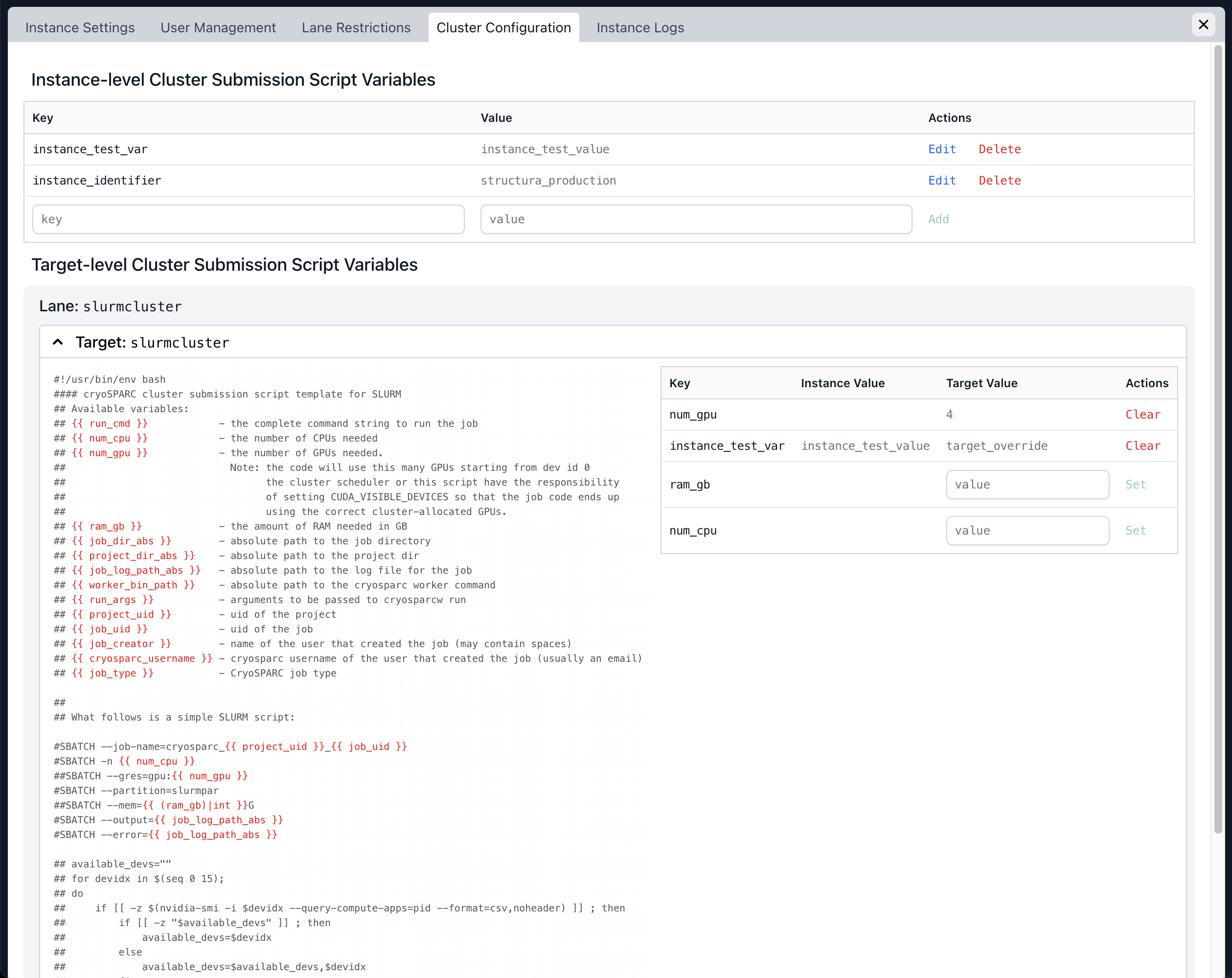
The Cluster Configuration page allows you to set custom variables for cluster job submission scripts at the instance-wide and per-target levels.
For more information, see:
{% content-ref url="/pages/5zikU1RIs7uHyIpgV96G" %}
[Guide: Configuring Custom Variables for Cluster Job Submission Scripts](/setup-configuration-and-management/software-system-guides/guide-configuring-custom-variables-for-cluster-job-submission-scripts.md)
{% endcontent-ref %}
## Instance Logs
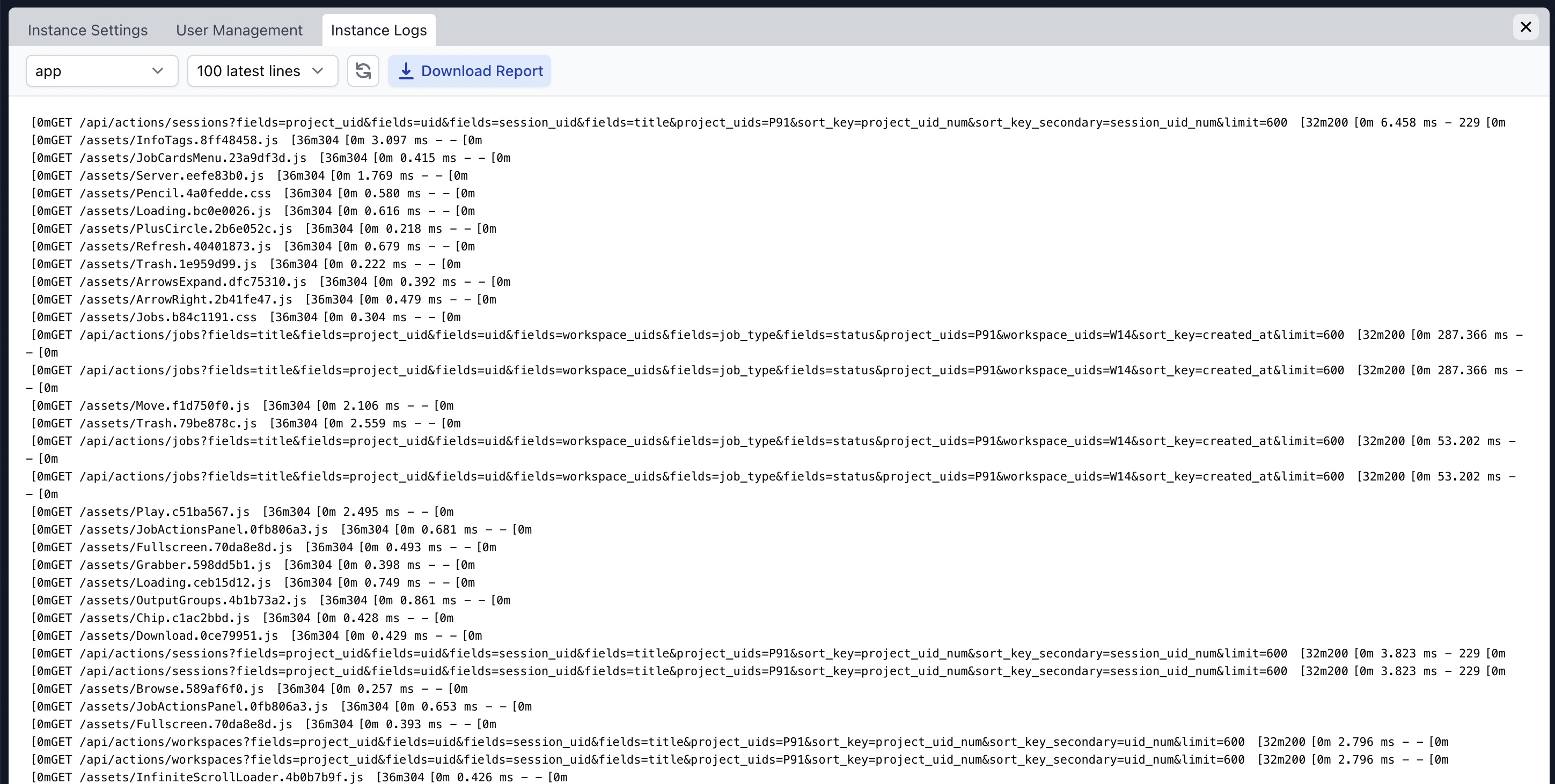
These are collections of logged messages and errors from the instance. Selection menus in the top bar allow you to choose from a variety of logs, including database, app, app\_api, app\_legacy, command\_core, command\_vis, and command\_rtp. The number of displayed lines can be set to 50, 100, 200, or 500.
The download report button downloads a zipped folder containing all available log files, as well as browser and runtime diagnostic files.
This information allows you to quickly diagnose problems or behaviours that your instance may be experiencing and can be invaluable for debugging purposes.