# Downloading and Exporting Data

## Downloading Lists of Projects, Workspaces, Sessions, and Jobs as a CSV File

The browse system includes the capability to download a CSV of the data shown in any particular view. This download will respect all filters and any sorting options applied to the view.

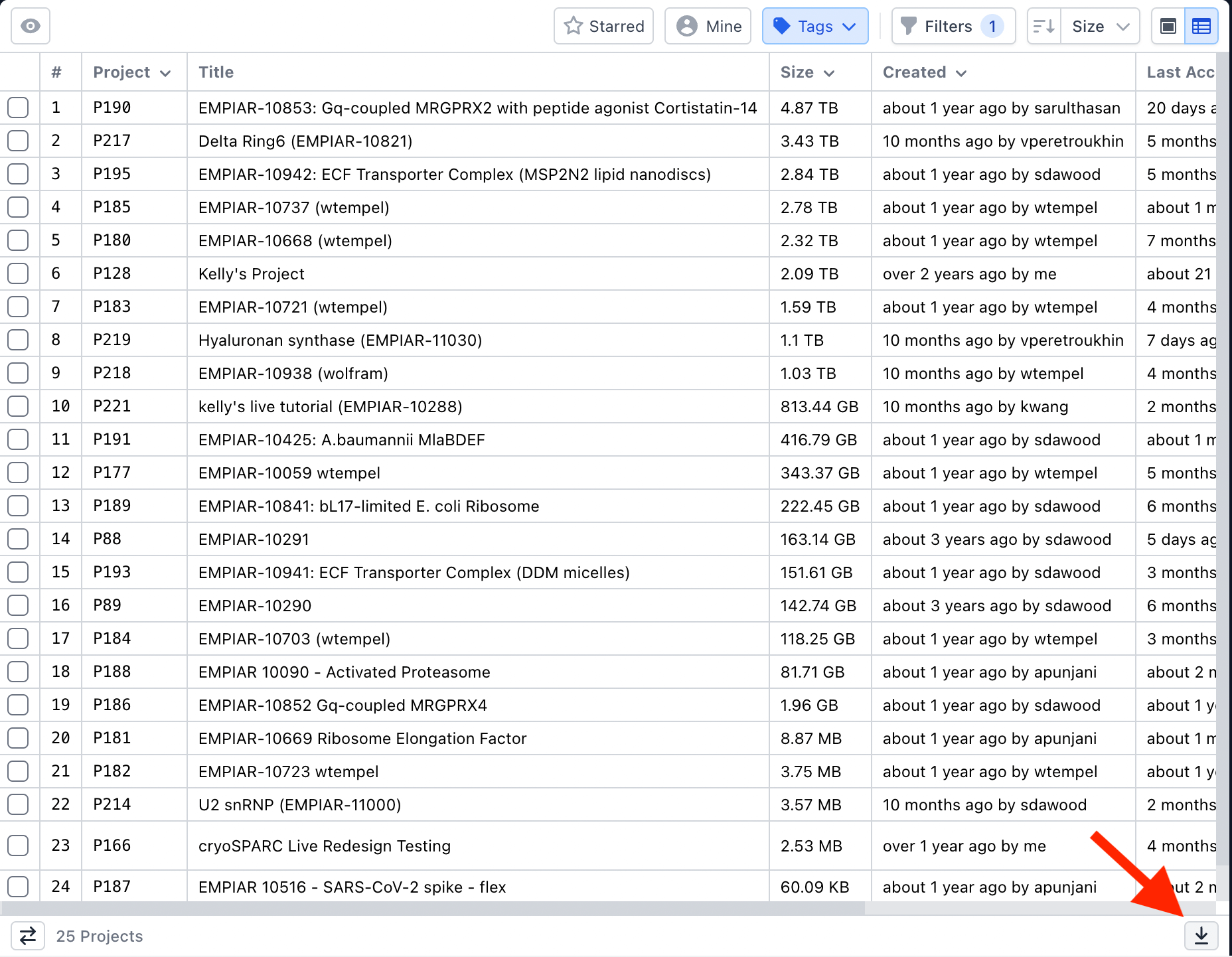
Initiating a CSV download can be accomplished by clicking the download button on the far right side of the application footer.

<figure><img src="/files/I9ZcBOStdCik2Te20IG9" alt=""><figcaption><p>CSV download button is located in the footer of all browse pages</p></figcaption></figure>

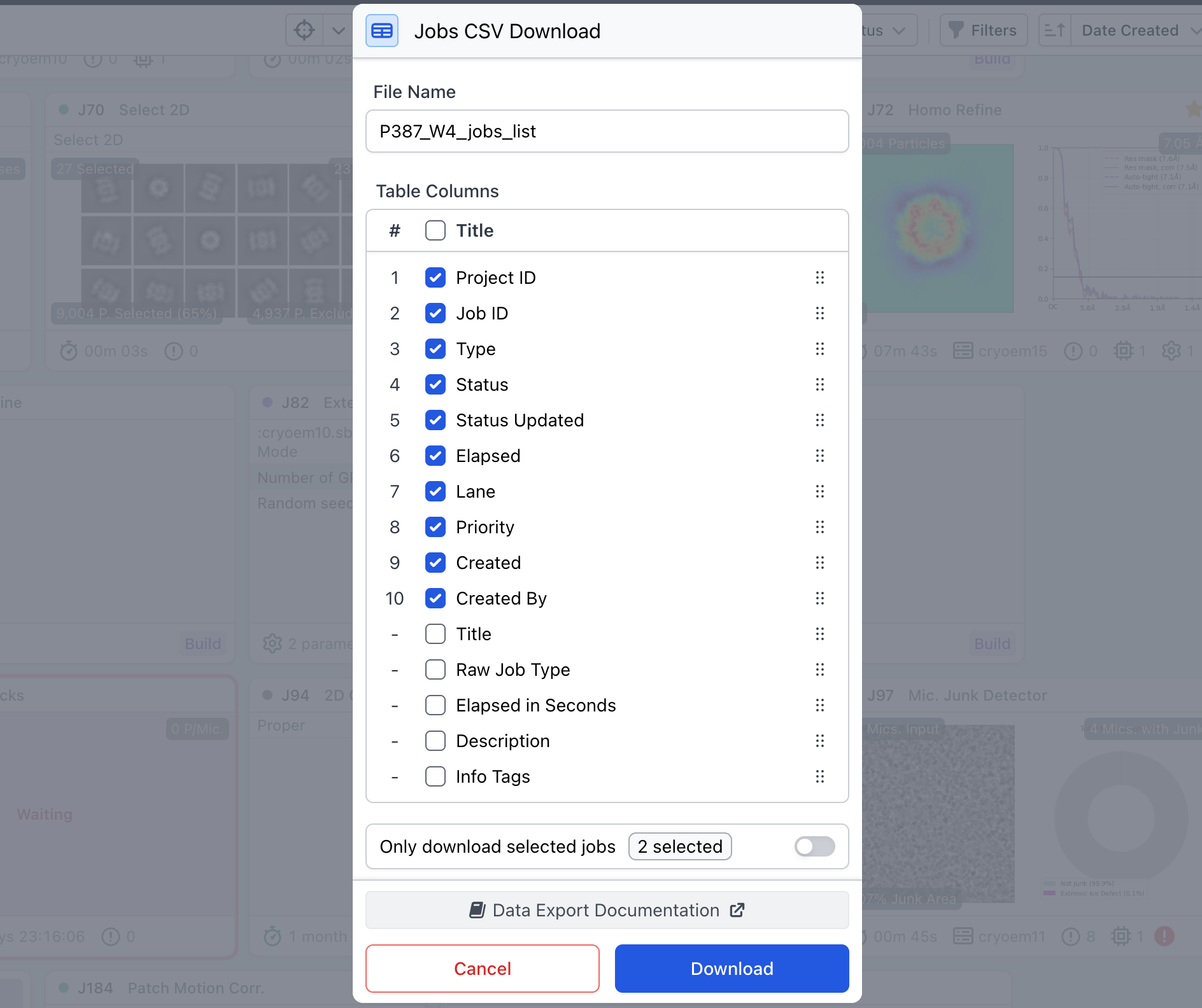
Pressing this button will open a dialog for customizing the CSV to suit your needs. Here you may update the CSV file name and select what information you would like to have appear in the CSV. The options shown in the “Table Columns” section represent columns in the CSV download and can be toggled for inclusion or exclusion. These options can also be dragged and dropped within the list to reorder the columns of the CSV table. Column options are mapped so that top to bottom in the download list corresponds to left to right in the CSV.

<figure><img src="/files/dUz9J88xXN7a2YQyt4dx" alt=""><figcaption><p>Dialog displaying options to customize the CSV file</p></figcaption></figure>

Clicking the blue “Download” button at the bottom of the dialog will download the formatted CSV to your device. In v5.0+ additional options have been introduced such as the inclusion of info tags and the ability to only download jobs that you have manually selected.

{% hint style="info" %}
You can download a list of all completed jobs across the entire instance this year by searching the spotlight (`command` + `k`) for ‘All jobs’ and adding a status filter of ‘completed’ and selecting a start and end date.
{% endhint %}

## Downloading Job Results

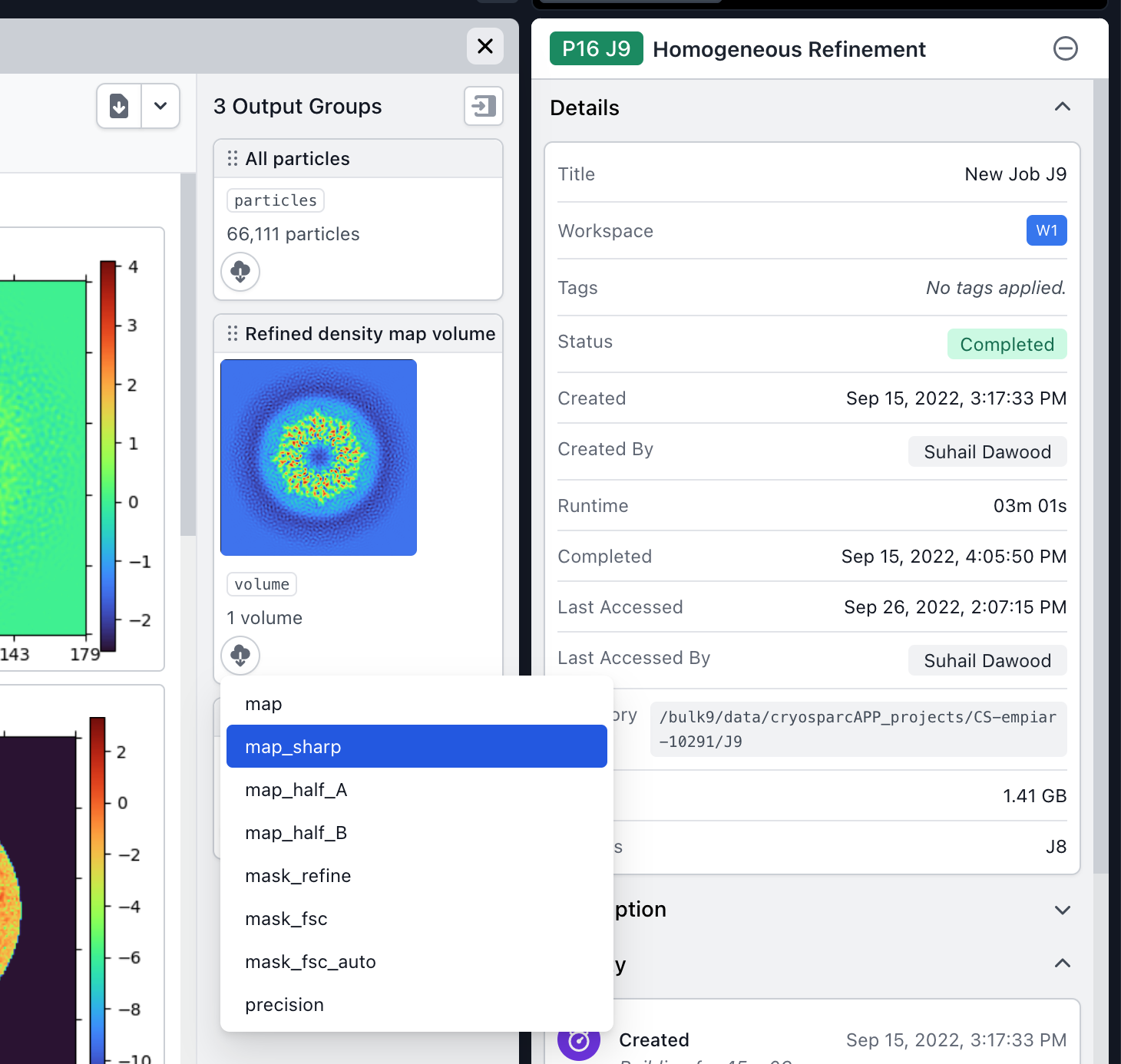
From the browse view, you can select a job and inspect it to view all job output groups. Each contain a list of items (such as `.cs` file metadata or `.map` volumes) to download:

<figure><img src="/files/XvhboRbxSdg8jFLwGQiZ" alt=""><figcaption><p>Viewing and downloading output results from the job inspection dialog.</p></figcaption></figure>

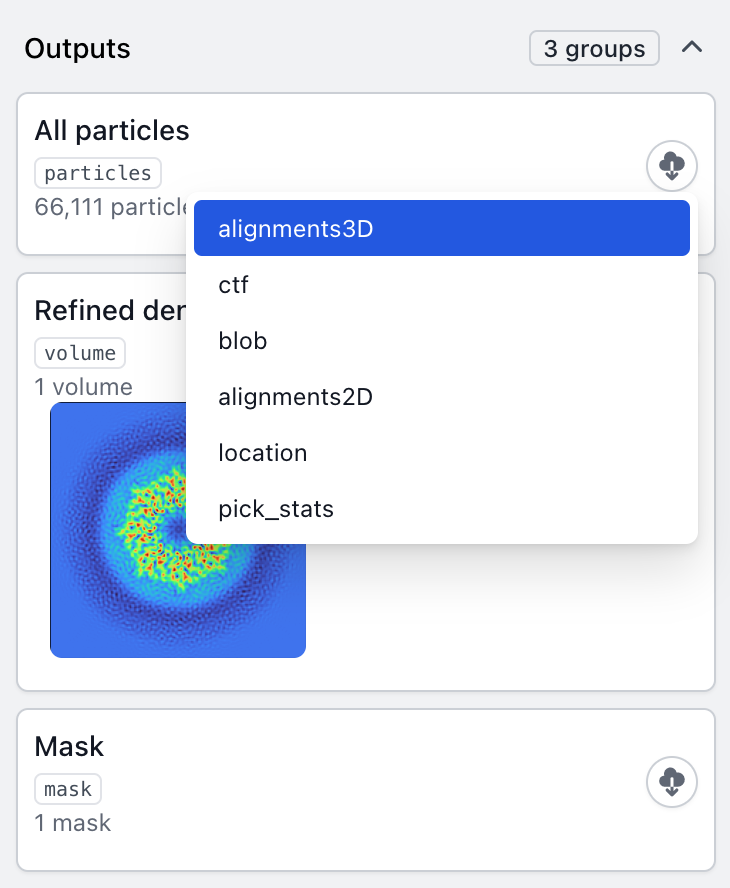
Alternatively, the list of output groups is available in the details sidebar of a job when selected under the “Outputs” panel:

<figure><img src="/files/VptGAGbjlg0Jlzhx4ZrE" alt=""><figcaption><p>Viewing and downloading outputs from the job details sidebar.</p></figcaption></figure>

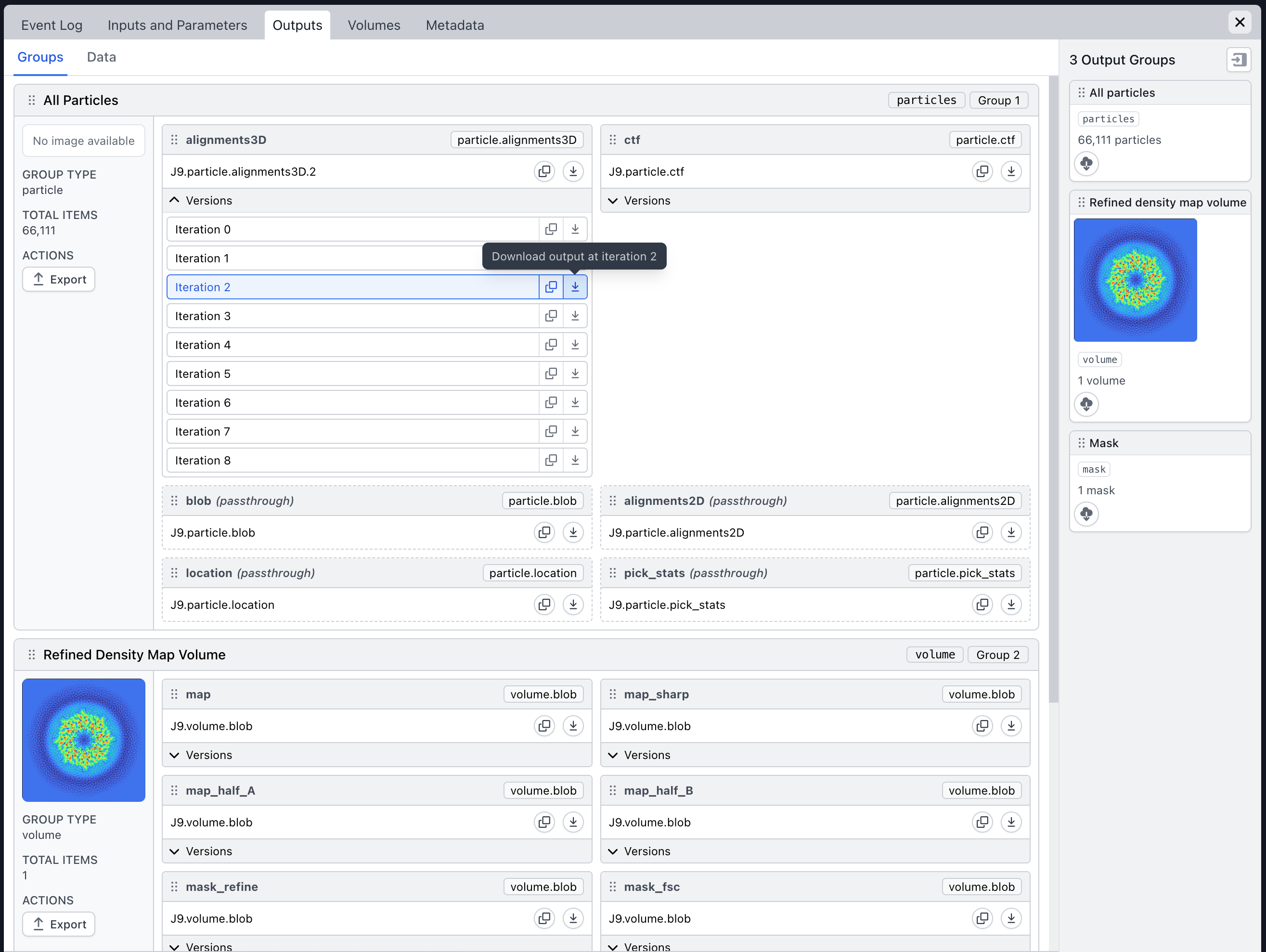
Additional download options are available from the “Outputs” tab of the job inspection dialog. Here you can copy the file path or download individual low-level results as well as download results from a specific iteration:

<figure><img src="/files/Izmx91Oav2rp9gzw6I2t" alt=""><figcaption><p>Downloading the alignments3D low-level result from iteration 2 of this Homogeneous Refinement job.</p></figcaption></figure>

## Downloading the Job Event Log

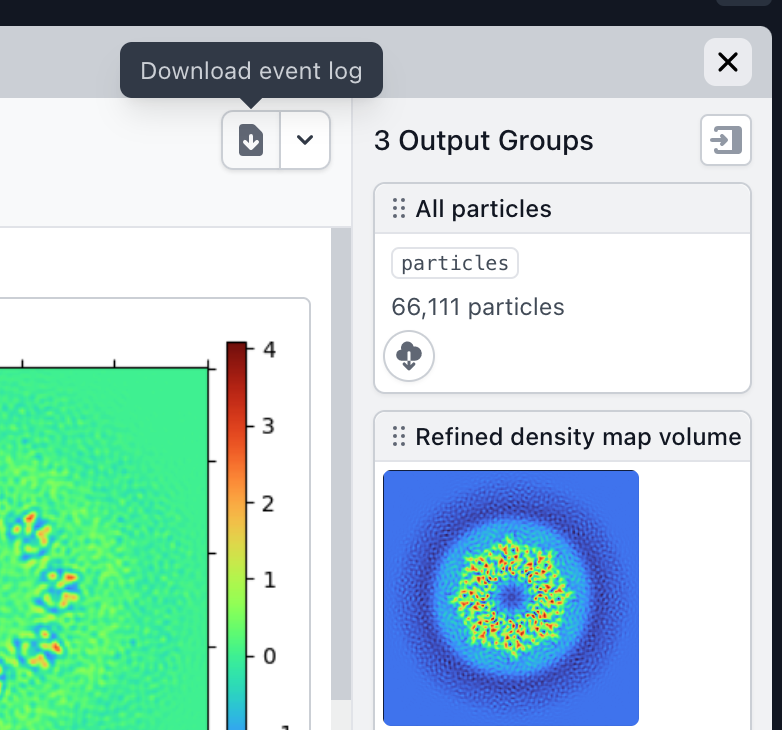
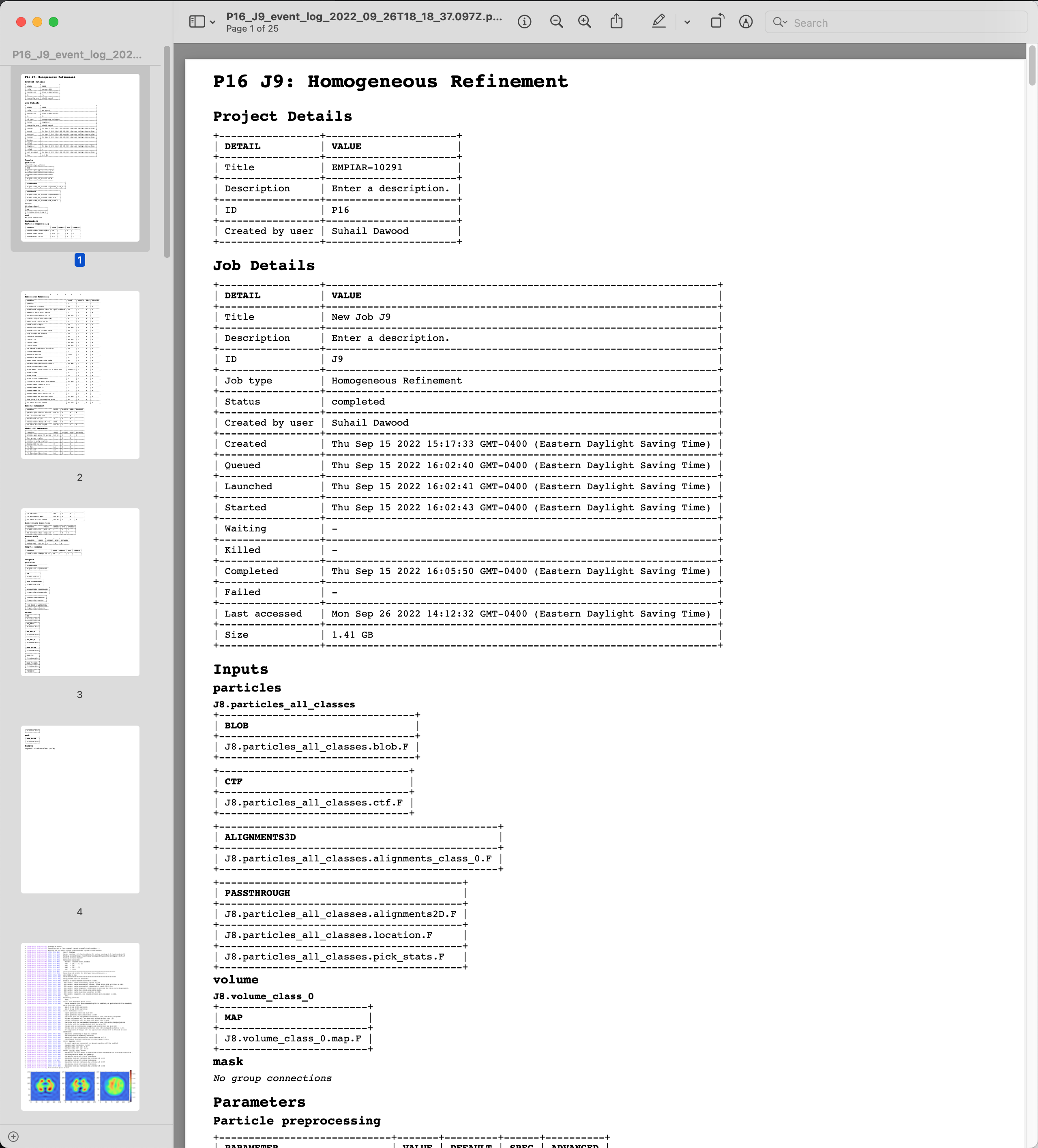
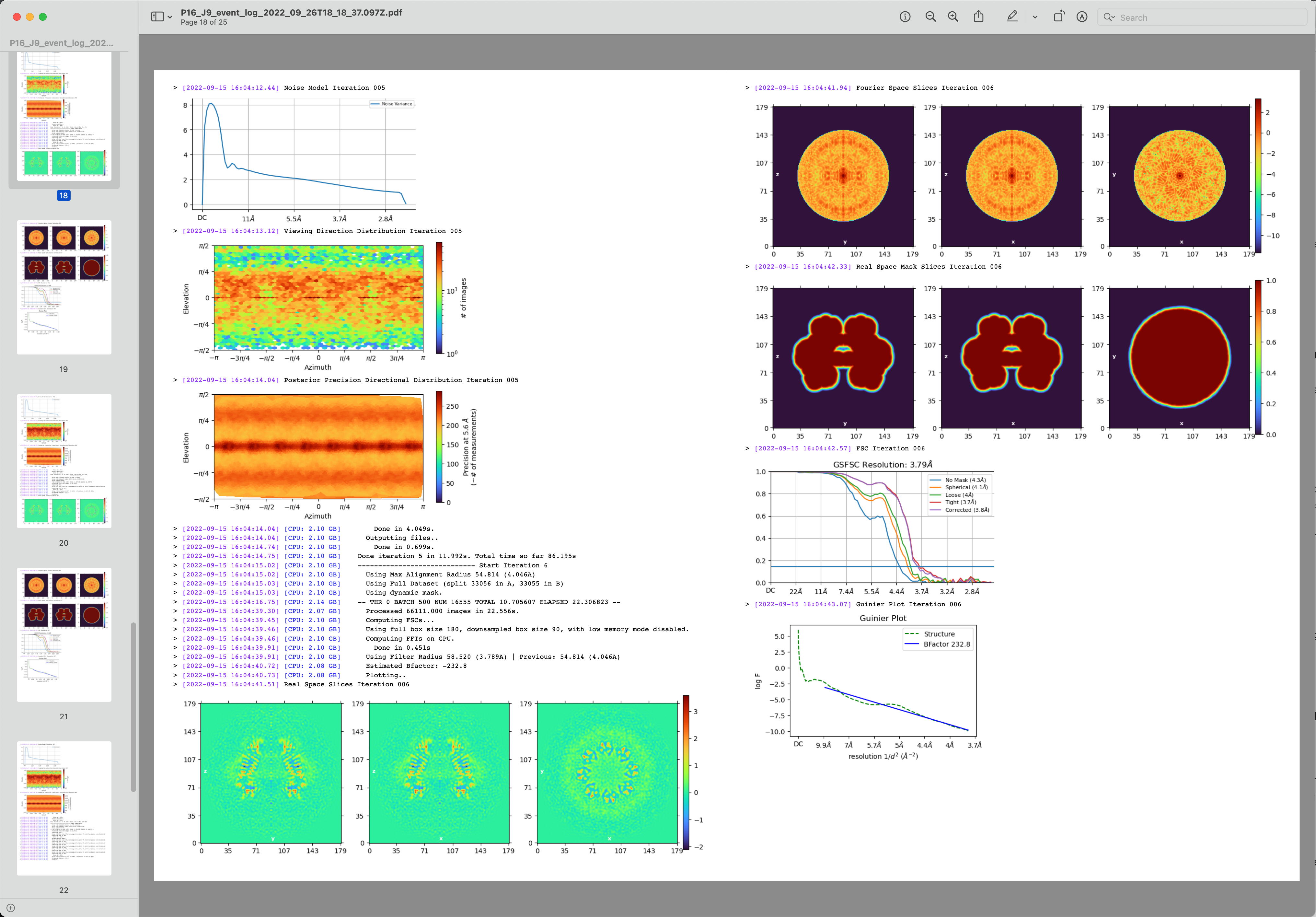
Often it is helpful to download a standalone copy of the processing history of a job. In CryoSPARC v4.0 you can now generate a PDF job that contains a cover page of important metadata and the full event log including images. This makes it easy to archive and share the results of a job.

<figure><img src="/files/ZUP129WX3jI6dschU37r" alt=""><figcaption></figcaption></figure>

<figure><img src="/files/XI0SxPzlJzXtGcJSaZ5U" alt=""><figcaption></figcaption></figure>

<figure><img src="/files/Zp2vAxpJ6ICIzMEvRyAG" alt=""><figcaption></figcaption></figure>

## Downloading a Job Report

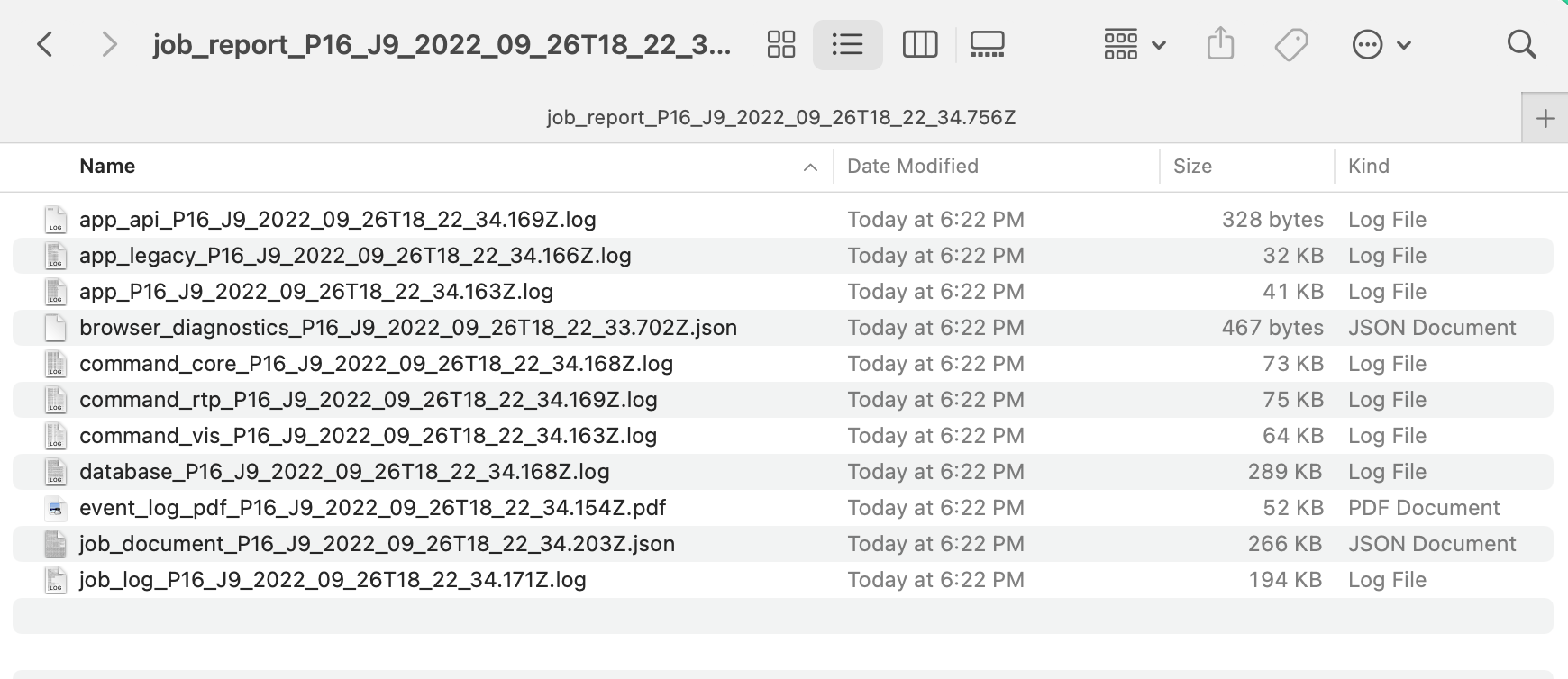
In addition to downloading just the job event log, you can download the event log and a set of CryoSPARC system logs for the purposes of debugging. You can choose to include or exclude images in the event log PDF. The report is packaged in a compressed ZIP file.

<figure><img src="/files/vqo9zSvSRXkpXum33Txl" alt=""><figcaption></figcaption></figure>

## Exporting Jobs

Refer to this guide on exporting jobs:

{% embed url="<https://guide.cryosparc.com/setup-configuration-and-management/software-system-guides/tutorial-data-management-in-cryosparc#use-case-share-a-particular-job-with-another-user>" %}

## Exporting Projects

Refer to this guide on exporting projects:

{% embed url="<https://guide.cryosparc.com/setup-configuration-and-management/software-system-guides/guide-data-management-in-cryosparc-v4.0+>" %}


---

# Agent Instructions: Querying This Documentation

If you need additional information that is not directly available in this page, you can query the documentation dynamically by asking a question.

Perform an HTTP GET request on the current page URL with the `ask` query parameter:

```
GET https://guide.cryosparc.com/application-guide/downloading-and-exporting-data.md?ask=<question>
```

The question should be specific, self-contained, and written in natural language.
The response will contain a direct answer to the question and relevant excerpts and sources from the documentation.

Use this mechanism when the answer is not explicitly present in the current page, you need clarification or additional context, or you want to retrieve related documentation sections.