> For the complete documentation index, see [llms.txt](https://guide.cryosparc.com/llms.txt). Markdown versions of documentation pages are available by appending `.md` to page URLs; this page is available as [Markdown](https://guide.cryosparc.com/application-guide/instance-management.md).
# Instance Management
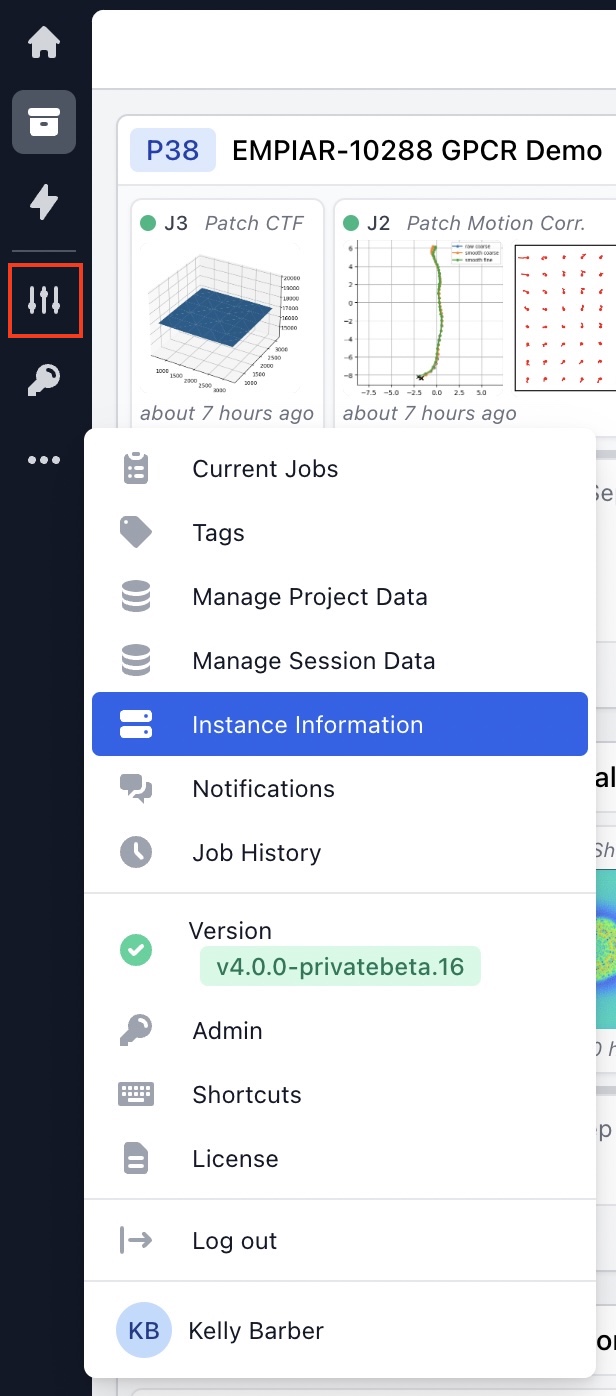
The management dialog can be opened on any page by clicking the “adjustments” button on the navigation bar located on the lefthand side of the app window. Once open, different sections can be navigated to using the tabs located at the top of the dialog, which correspond to sections for the management of jobs, tags, project and session data, as well as instance-level information. Alternatively, manage dialog sections can be navigated to directly by opening the navigation bar “triple dot” overflow menu and clicking on an option in the first section of the menu.
{% hint style="info" %}
The manage dialog will appear above the current page content without navigating you away from the page.
{% endhint %}
### Instance Tab
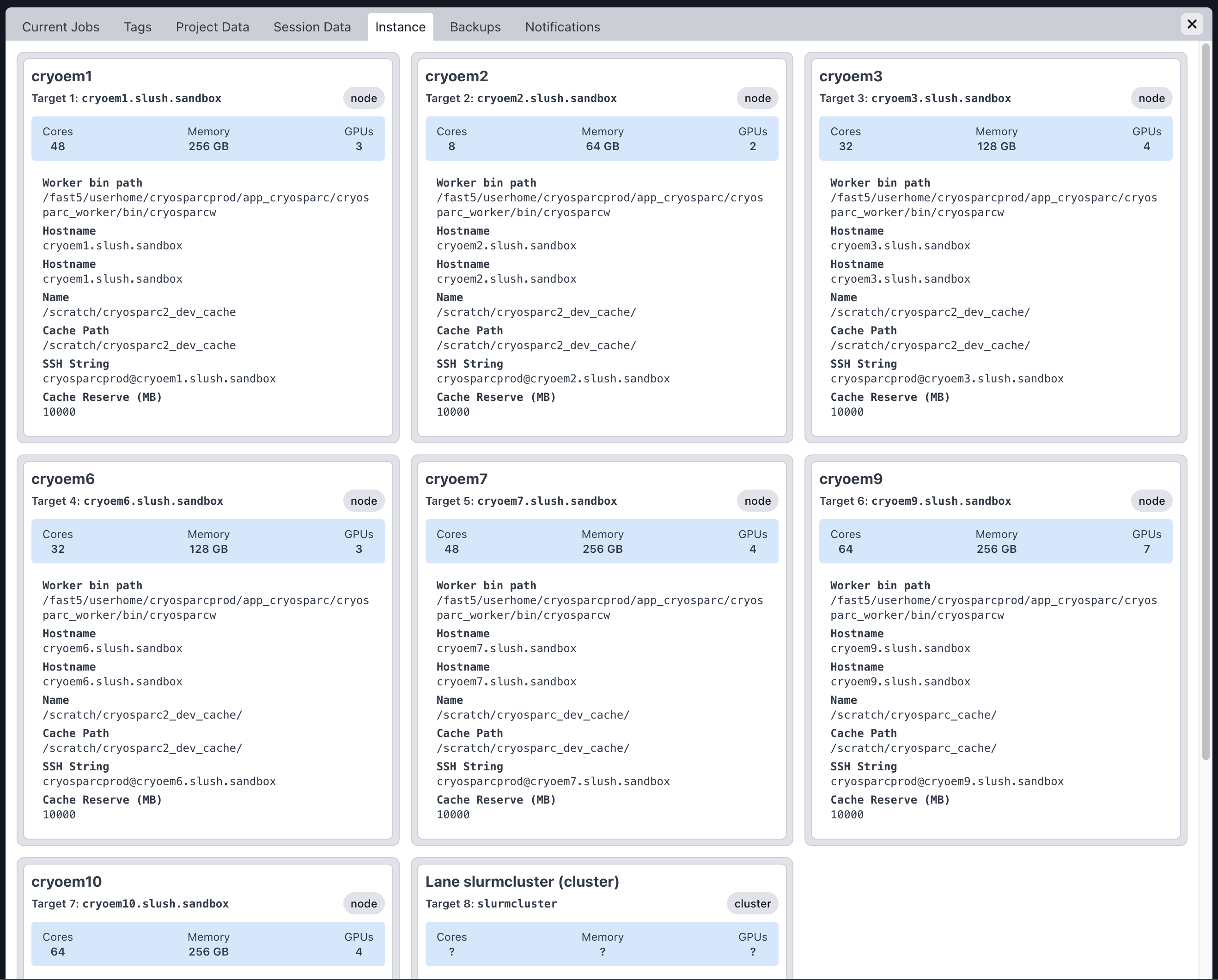
The instance tab provides a read-only view of all lanes and targets configured via the command line. For more information on how to configure CryoSPARC processing nodes, refer to the following page on the guide: [Connecting a Worker Node](https://guide.cryosparc.com/setup-configuration-and-management/how-to-download-install-and-configure/downloading-and-installing-cryosparc#connecting-a-worker-node).
Instance Tab in v4.0
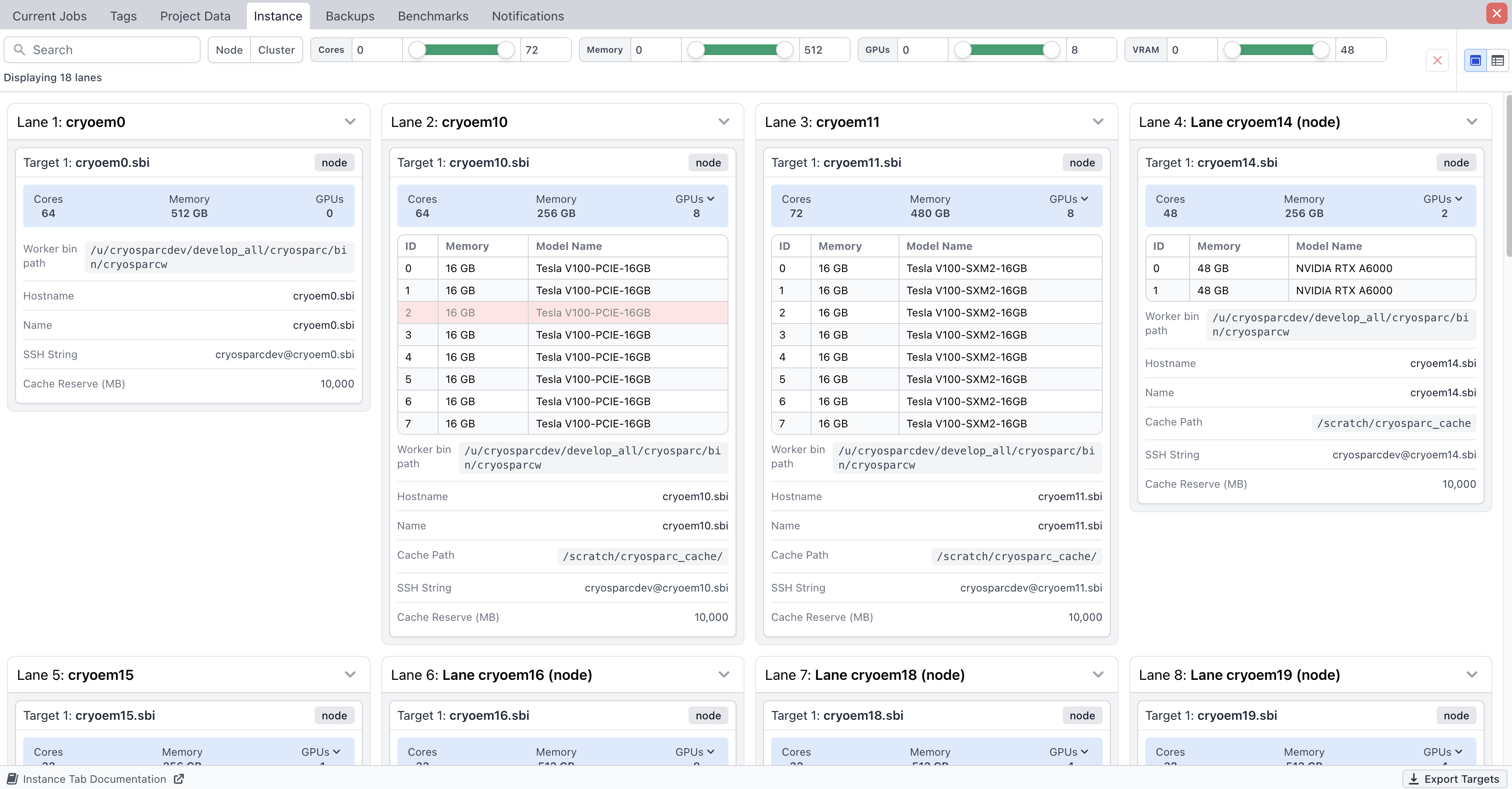
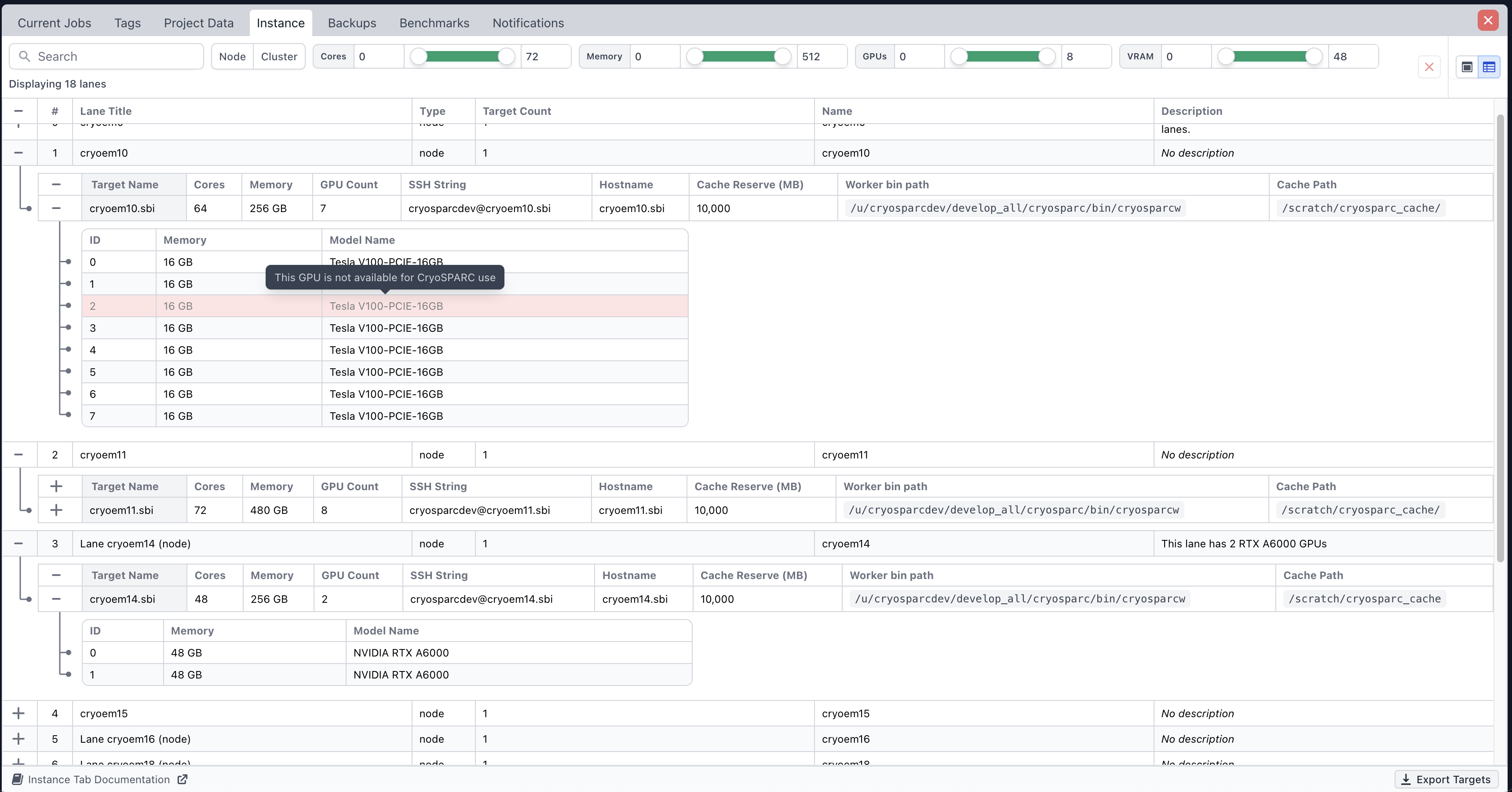
v5.0 and later introduce a substantially redesigned *Instance* tab that expands both visibility and operational control. The updated interface provides a structured table of GPU information for available targets, along with comprehensive search and filtering capabilities across lanes, targets, and GPUs. It also enables direct copying of filesystem paths and cluster submission scripts, streamlining workflow integration. Lanes and targets can be viewed as cards or in a table.
Instance Tab (Card View) in v5.0+
Instance Tab (Table View) in v5.0+
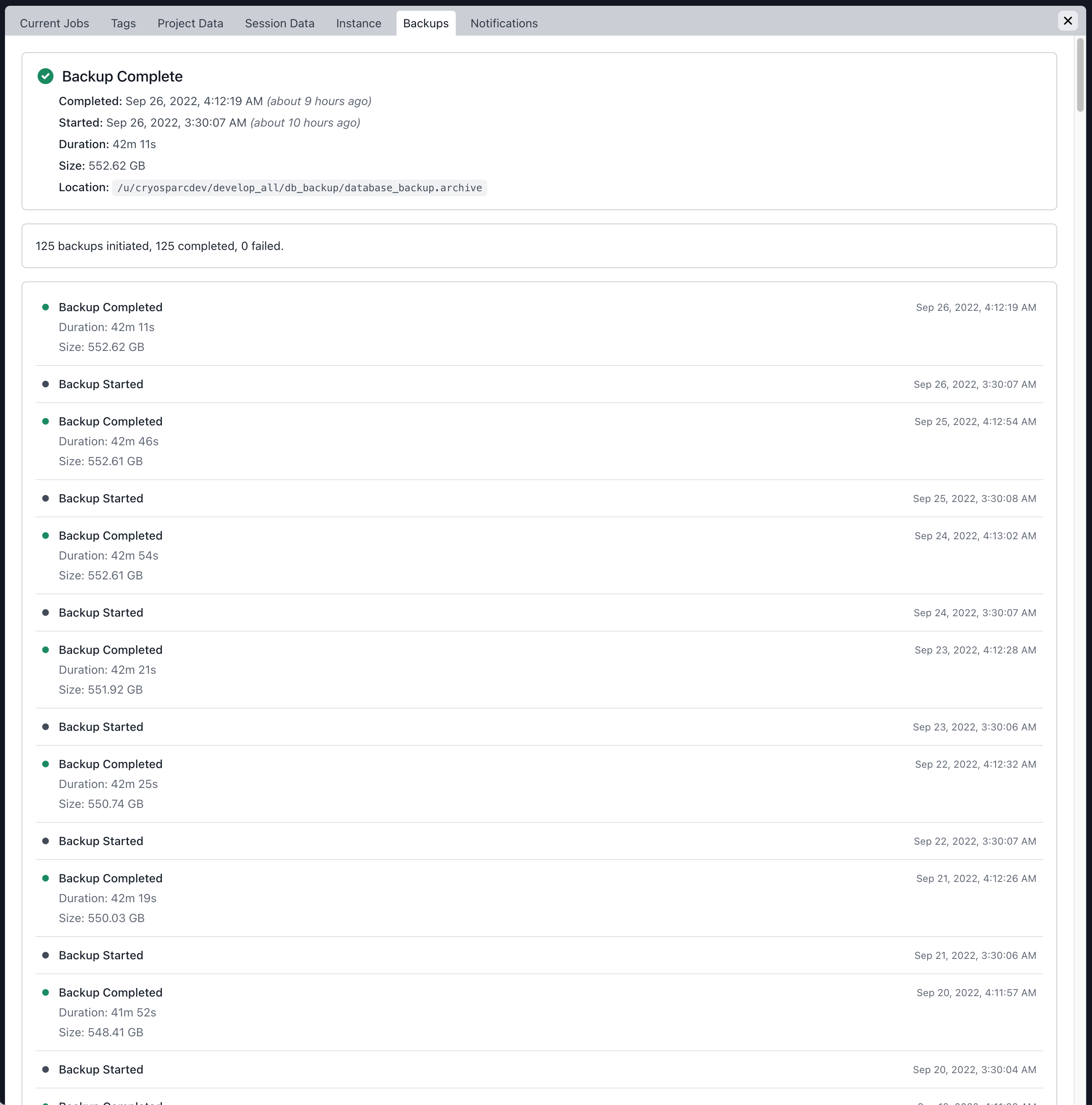
### Backups Tab
The backups tab displays a history of the most recent backups that were configured via the command line.
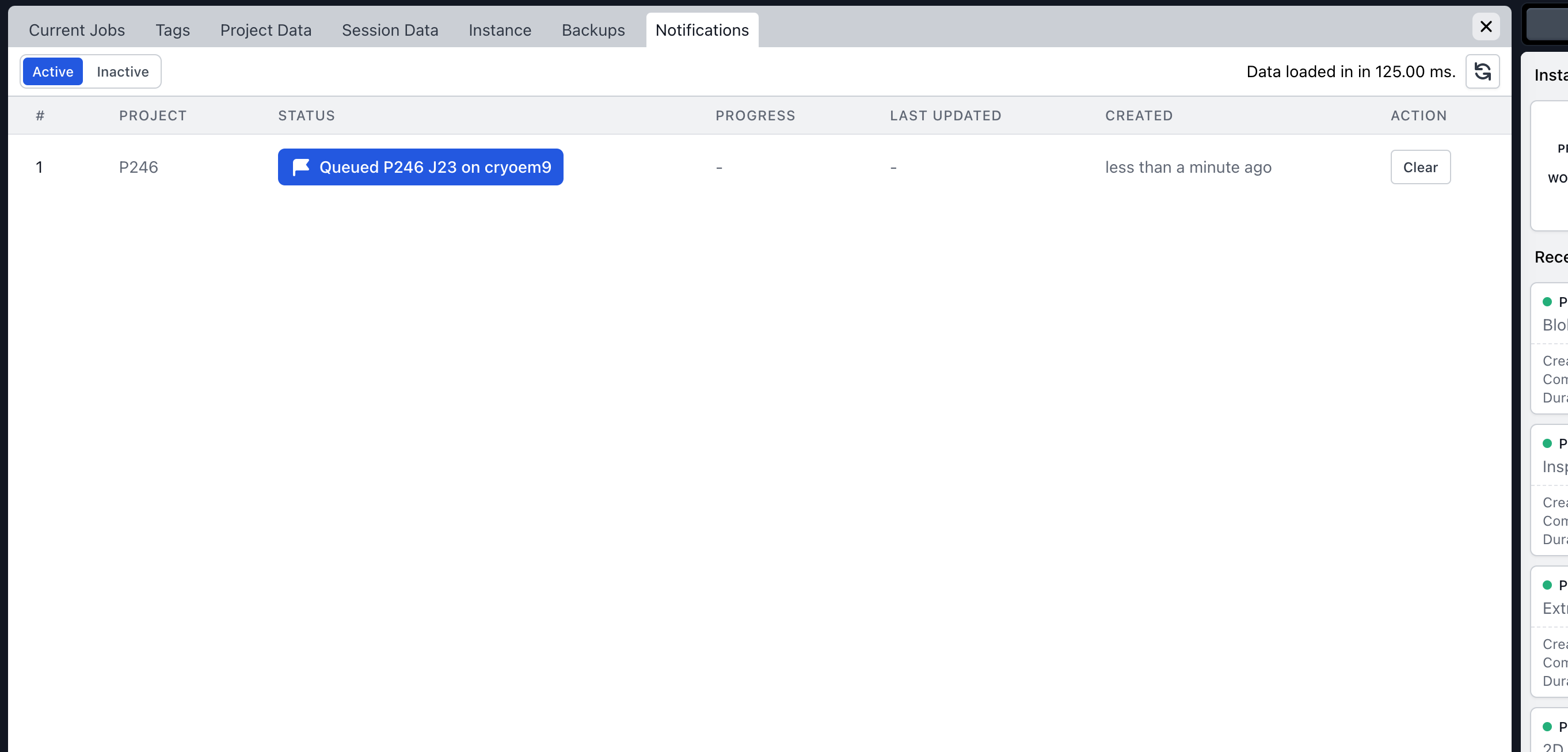
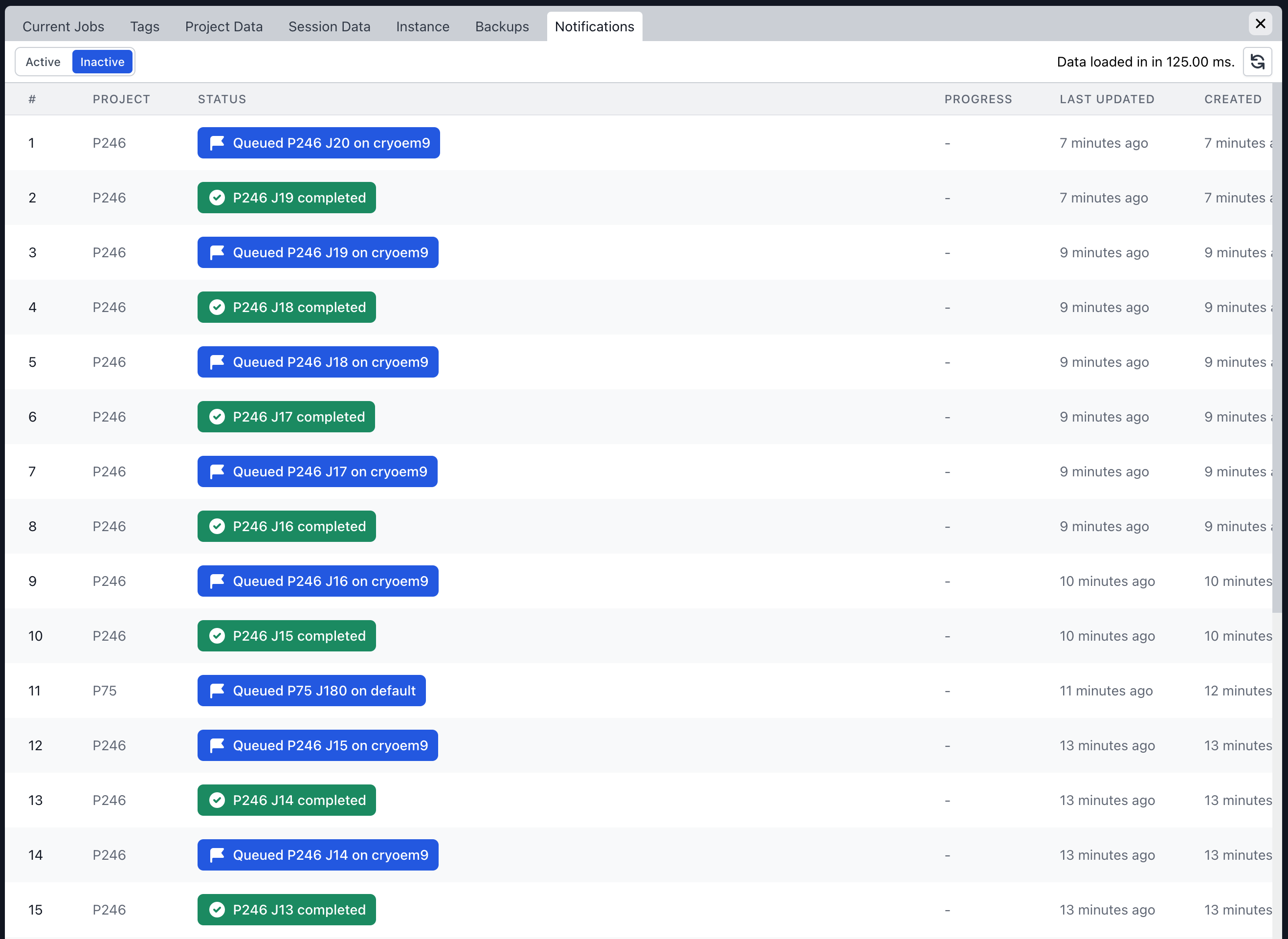
### Notifications Tab
Notifications are presented in the CryoSPARC interface from local actions (such as queuing a job) and external events (such as the progress of a project export). In most cases these notifications are hidden when an event is resolved (i.e. the project export completes). In rare cases you may want to manually clear an active notification from displaying. This can be done by clicking on the ‘Clear’ button next to any active notification:
To view a history of inactive notifications, click on the ‘Inactive’ toggle: