> For the complete documentation index, see [llms.txt](https://guide.cryosparc.com/llms.txt). Markdown versions of documentation pages are available by appending `.md` to page URLs; this page is available as [Markdown](https://guide.cryosparc.com/application-guide/managing-data.md).
# Managing Data
{% hint style="danger" %}
Do not remove from the filesystem any directory that is managed by an[ attached CryoSPARC project](https://guide.cryosparc.com/application-guide/pages/F3KBgDxkuaoVRFwpV0KW#2.-attaching-detaching-archiving-and-unarchiving-projects). First delete unwanted projects using the *Delete Project* GUI action or the [`delete_project()` method of the CryoSPARC CLI](/setup-configuration-and-management/management-and-monitoring-4.7/cli-4.7.md#delete_project-project_uid-str-request_user_id-str-all_jobs_in_project-list-all_workspaces_in_projec).
{% endhint %}
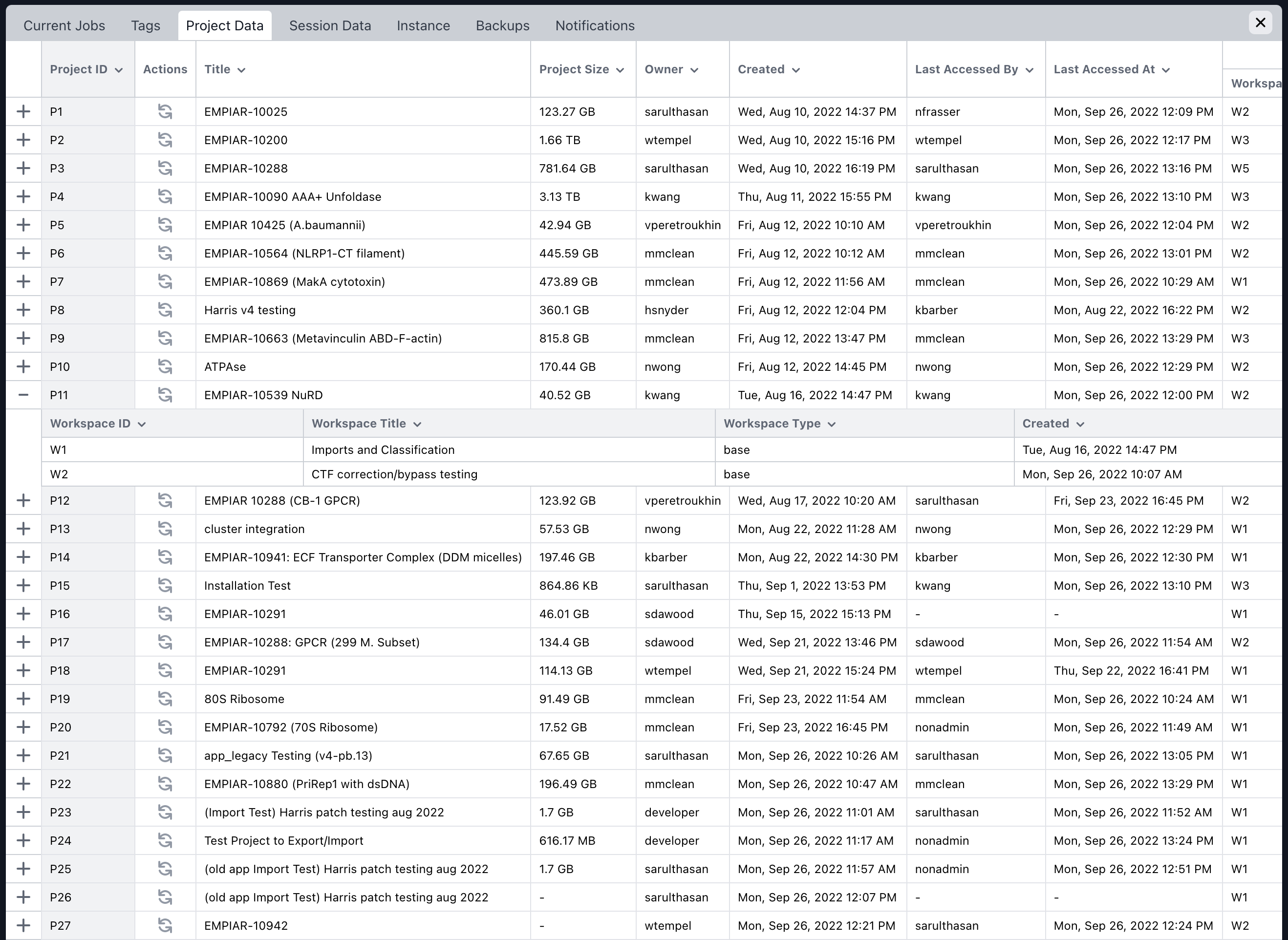
Available in the management dialog, the Project Data and Session Data tabs allow you to view and perform actions related to managing data size.
## Project Data
The project data table is a comprehensive view of all available projects across the instance with the intention of allowing decisions to be made in regards to data size on disk. The table can be sorted by any of its fields and each project row houses a nested workspaces table. This nested table shows all workspaces within said project and pertinent information about them. The actions column makes available a “Refresh Project Stats” button for each row, intended to allow the fetching of the most up to date project sizes.
## Session Data
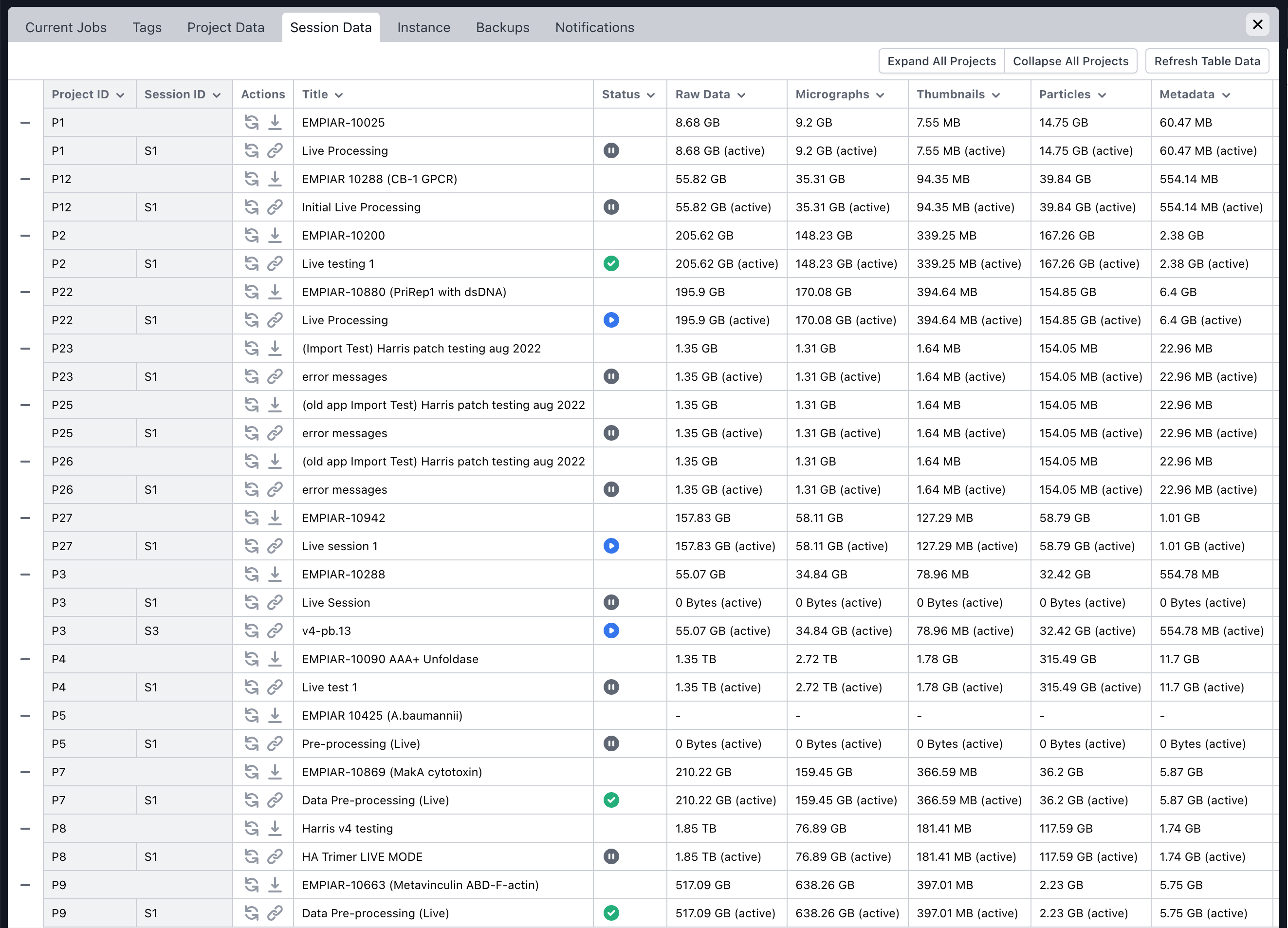
The session data table is similar to the project data table in intention, with more scope in actionable options. The table shows all projects with available sessions as top level rows, and the contained sessions as collapsable sub-rows beneath. Sorting the table by any of its columns will sort both the projects and contained sessions by the attribute.
The actions column allows the user to refresh stale data on the project level, which refreshes the project total size and the size of all sessions, or by a single session, which refreshes solely that session and the project total updated with its new size. The download button will download a set of sessions stats, and the link button will take you to the single session live view, closing the dialog.
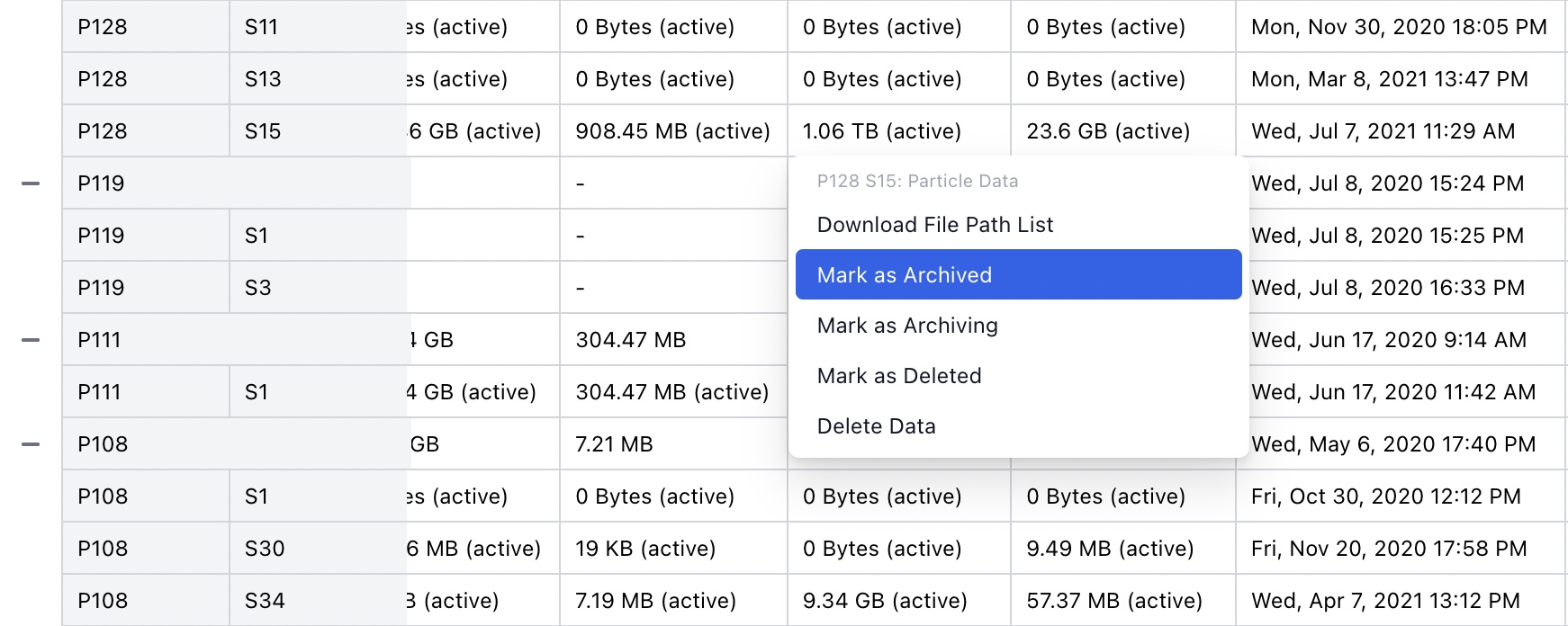
Each cell in the session row for the columns Raw Data, Micrographs, Thumbnails, Particles, and Metadata, are interactive and will trigger a management menu when clicked. These menus give a variety of options for managing session data depending on the session status and row type.
For more information about CryoSPARC Live Session Data Management, please see:
{% content-ref url="/pages/-MNexr5lrR2HBCuP4qWS" %}
[Guide: CryoSPARC Live Session Data Management (≤v4.7)](/setup-configuration-and-management/software-system-guides/cryosparc-live-session-data-management-4.7.md)
{% endcontent-ref %}